Smart Switch App File Transfer
CoddeX StudioProductivity
0.00.00 Reviews
- Version
- 1.1.8
- Installs
- 100.00K
- Age Rating
- Everyone
Screenshots
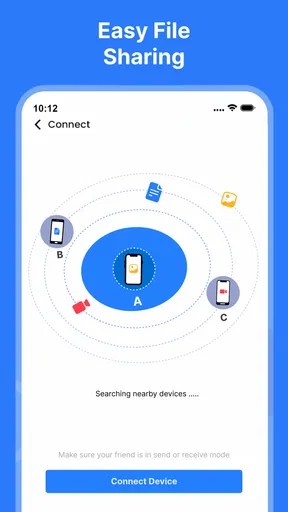
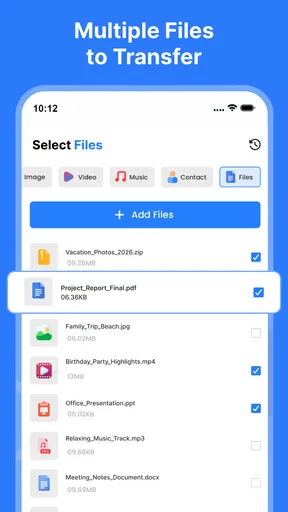
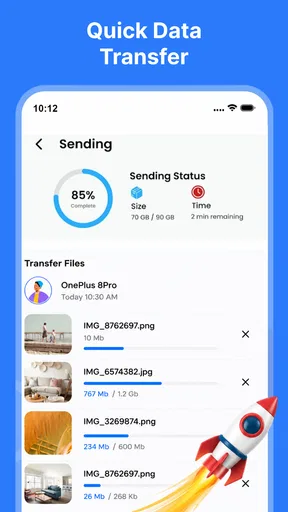
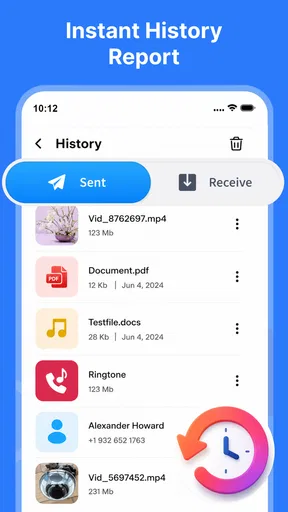
Our Review of Smart Switch App File Transfer
 Analysis by Appyee
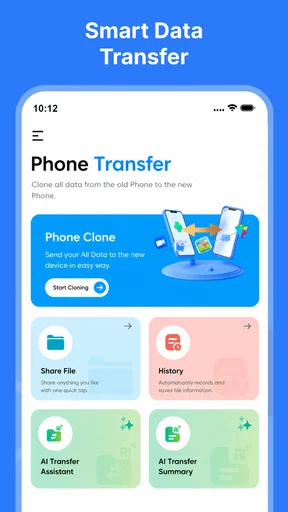
Moving to a new phone sounds simple until the small details start getting in the way: photos are spread across folders, documents are easy to forget, and the usual setup process can turn into a slow afternoon. Smart Switch App File Transfer, developed by CoddeX Studio, is designed for that specific moment. I tested it as a practical productivity tool rather than as an app I would leave open every day, and my impression is clear: it can make a phone-to-phone move more organized, but it works best when you treat it as a focused transfer utility instead of a complete replacement for every backup method.
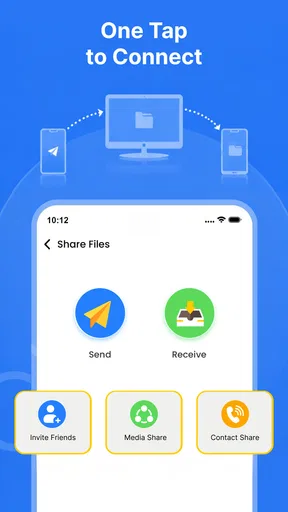
The app is free to install and aimed at Everyone, which makes its basic purpose easy to understand for families, students, and people buying a replacement phone. Its central job is moving files, photos, and other personal data between phones. That sounds narrow, but it is useful because the transfer problem is usually not about one spectacular feature; it is about reducing the number of things you have to remember during a stressful device change.
How Smart Switch App File Transfer feels in its current version
The current release is version 1.1.8, and that detail matters because transfer apps can change noticeably as connection handling and device compatibility improve. I would describe this version as a straightforward helper: it is built around getting content from one handset to another, not around editing files, managing cloud storage, or becoming a full productivity suite. The interface is therefore most valuable when you already know what you want to move and can prepare both phones before starting.
In everyday use, I would begin by clearing distractions on both devices. Close apps that may be actively changing files, make sure the receiving phone has enough free space, and keep both screens available while the transfer is being arranged. These are not glamorous steps, but they prevent the most common kind of confusion: assuming a transfer failed when the real issue is storage, an interrupted connection, or a source folder that was still changing.
The app’s strongest appeal is its directness. Instead of manually selecting individual images in a gallery, sending batches through a messaging service, or uploading everything and downloading it again, a dedicated phone-cloning workflow gives the move a single purpose. That is especially helpful for someone who is not comfortable juggling several services during setup.
At the same time, I would not confuse “phone clone” with a perfect replica of the old handset. A transfer utility can move personal content, but the experience of a new phone still includes signing into accounts, reinstalling apps, checking notification settings, and confirming that important information arrived correctly. I recommend using this app as one part of the migration rather than assuming it will recreate every setting and every app state automatically.
A realistic move from an old phone to a replacement
Imagine replacing a phone after several years of use. The old device contains family photos, downloaded documents, screenshots, and folders created for work or study. The goal is not merely to copy a few favorite pictures; it is to make the new handset feel usable before the old one is wiped. This is where the app makes sense. I would use it early in the setup process, transfer the material I actually need, and then inspect the new phone folder by folder.
That last inspection is important. A successful transfer is not the same as a well-organized transfer. Photos may be mixed with screenshots, duplicate files may remain, and documents may be stored in locations that are unfamiliar on the new device. I would open several transferred files, check a few older photos as well as recent ones, and compare the most important folders before deleting anything from the source phone.
For a family member who mainly wants pictures and basic personal files, this focused approach is easier to explain than a collection of separate backup instructions. For a student, it can reduce the risk of leaving lecture notes or project folders behind. For a small-business user, it can help move reference documents, although I would still verify sensitive work files individually before retiring the old device.
What the version tells me about the product’s direction
Version 1.1.8 suggests a product that is still being refined rather than a mature platform with a large ecosystem around it. I see that as neither automatically good nor bad. A focused transfer app can improve through practical fixes, especially around the moments when two phones discover each other, maintain a connection, or handle a large batch of files.
What I can judge today is the app’s role: it is a free productivity app from CoddeX Studio that concentrates on moving personal content between phones. I would be cautious about expecting a dramatic redesign or a completely different migration system from a version number alone. The sensible expectation is incremental improvement in the existing transfer experience, not a promise of features that are not currently part of the product.
The app has passed the threshold of broad public interest with over one hundred thousand installs, but I would not use that figure as proof that it is right for every device combination. Transfer tools are unusually dependent on the two phones involved, their operating systems, their available storage, and the kind of content being moved. Popularity can make an app worth trying; it cannot replace a small test transfer.
My preferred way to evaluate any phone-cloning tool is to start with a modest selection: a few photos, a document, and a folder that matters but is not irreplaceable. If that test behaves as expected, I would proceed with larger batches. This approach is more reliable than beginning with an entire camera library and discovering a problem only after the process has been running for a long time.
How existing users benefit from the current release
If you already use Smart Switch App File Transfer, the main benefit is consistency. Once you understand its transfer flow, you can reuse the same preparation routine whenever you move between phones: charge both devices, clear enough space, decide what is essential, test a small batch, and verify the result. That routine is more valuable than pressing a single button and hoping the new phone is perfect.
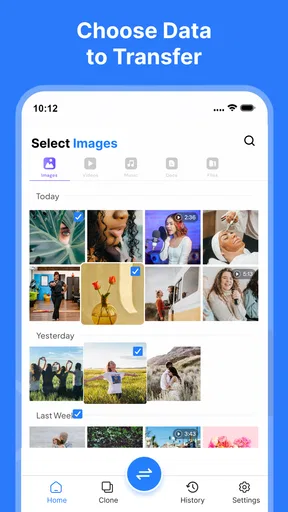
Existing users should also think in categories rather than selecting everything automatically. Photos, videos, documents, audio, and miscellaneous downloads do not have equal value or equal size. A selective transfer can make the move faster and leave out clutter that you would only delete later. I find this especially useful for old screenshots and temporary downloads, which often occupy attention without being worth carrying forward.
Another useful habit is to preserve the old phone until the new one has been checked. Do not treat the end of the transfer animation as the end of the migration. Open representative files, search for a few known names, and confirm that the folders you use most are present. For irreplaceable photos or work documents, I would keep an additional copy through a trusted backup method rather than relying on one transfer path.
The free entry point also lowers the barrier for a one-time move. You do not need to commit to a subscription just because you are changing devices. However, the app includes in-app purchases priced at $14.99 per item. I would look carefully at what any optional purchase unlocks before paying, particularly if my move is small enough to complete with the free experience. The important question is not whether an upgrade exists, but whether it solves a limitation that actually affects your transfer.
Where it differs from the usual alternatives
The most obvious alternative is manual copying through a computer. That method gives you more visibility over folders and can be reassuring if you want to archive files carefully, but it adds cables, file browsing, and another device to the process. Smart Switch App File Transfer is more convenient for a direct phone-to-phone move, while a computer remains better for someone who wants a long-term, clearly labeled archive.
Cloud storage is another common option. It is useful when the old and new phones are not together, or when you want an ongoing backup rather than a one-time migration. Its trade-off is dependence on account access, upload time, download time, and available cloud capacity. A direct transfer app feels more appropriate when both phones are beside you and the main goal is getting personal content onto the replacement quickly.
Built-in migration tools from phone manufacturers can be preferable when they are designed specifically for the devices involved. They may integrate more deeply with system settings or account restoration. I would choose Smart Switch App File Transfer when I want a simple, general-purpose transfer helper, especially if the manufacturer’s own process feels confusing or does not cover the files I care about. I would choose the built-in option when restoring system preferences and supported app data matters more than moving ordinary files.
Messaging apps and email are fine for sending a handful of items, but they are poor substitutes for a full move. They can compress media, scatter files across conversations, and make it difficult to remember what has already been sent. The dedicated workflow is more sensible for a broad collection, provided you still verify the result afterward.
Small workflow choices that make a big difference
My first practical tip is to divide a large transfer into meaningful groups. Begin with essential documents and recent photos, then handle older media separately. If something interrupts the process, you will know which group needs checking instead of having one enormous, difficult-to-audit batch.
My second tip is to use the old phone as a reference during verification. Search for unusual filenames, open a few files from different dates, and check both a large video and a small document. This catches problems that a quick glance at the new gallery may miss. It also helps reveal whether a folder structure has changed during the move.
My third tip is to remove clutter before transferring, not after. A phone change is a natural opportunity to leave behind duplicate downloads, forgotten screenshots, and temporary files. Selective migration reduces storage pressure on the new device and makes the result easier to navigate. I would avoid deleting anything from the source until the new copy has been checked and any important accounts have been restored.
A fourth trade-off is speed versus control. Selecting broad categories is quicker, but manual selection gives you a cleaner result. If the old phone is mostly personal photos and ordinary documents, broad transfer may be convenient. If it contains years of mixed downloads or confidential work material, I would slow down and choose folders deliberately.
Limitations I would consider before installing
The app is not the right choice for someone who wants a complete system image, a permanent backup plan, or a detailed archive-management tool. Its purpose is more immediate: move content from one phone to another. If your priority is restoring every setting exactly as before, a manufacturer migration service or a carefully configured cloud backup may be a better fit.
I would also avoid using it as the only safeguard for valuable information. Phone transfers are convenient, but they are still a single event involving two devices. A damaged source phone, an interrupted session, insufficient storage, or an unexpected compatibility issue can complicate the move. Keeping the old handset available and maintaining a separate backup for irreplaceable material is sensible, especially for work, family records, and personal documents.
Storage planning is another possible friction point. Photos and videos can consume space quickly, and the receiving phone may not have the capacity you assumed. Before starting, I would check the available space and decide whether older media belongs on the new phone at all. This is one situation where a computer archive or cloud service may be better than transferring everything directly.
The optional purchase model may also influence your decision. Since in-app purchases cost $14.99 per item, I would not pay automatically just because the app presents an upgrade. First determine whether the free workflow handles your actual content and whether the paid option provides a concrete benefit for your situation. For a one-time move with a modest file collection, the free route may be enough; for a larger or more demanding migration, comparing the purchase with other tools is worthwhile.
Who should use it, and who should skip it
I would recommend Smart Switch App File Transfer to someone who wants a direct, approachable way to move photos, files, and personal data between two phones. It is particularly suitable when both devices are available at the same time and the user prefers a guided transfer over managing cables, folders, and multiple cloud services. Its Everyone age rating also makes it approachable for ordinary household use.
I would be more cautious recommending it to a professional who needs documented file handling, a person with a nearly full receiving phone, or anyone expecting a perfect copy of the old system. Those users may benefit more from a computer-based archive, a manufacturer-specific migration tool, or a layered backup plan. Likewise, if the old phone is failing and the data is irreplaceable, I would prioritize a secure backup before experimenting with any direct transfer.
For iPhone and Android users, the key question is not simply whether the app is available on the preferred platform. It is whether the particular pair of phones can establish a dependable transfer and whether the content types you need are handled in the way you expect. I would test the connection and a small batch before committing to a full migration, especially when moving between different ecosystems.
What I would watch as the app evolves
For future releases, I would pay attention to improvements that make large transfers easier to understand: clearer progress information, better handling of interrupted sessions, and more confidence about what has already arrived. I would also value practical organization tools that help users distinguish essential documents from disposable downloads, as long as those additions do not make the basic transfer harder.
I would not assume those improvements are already present simply because they would be useful. My current assessment is based on the app’s present identity as a phone-cloning and file-transfer utility, with version 1.1.8 representing its current state. Any future change should be judged by how reliably it helps people finish a move, not by how many extra controls it adds.
In the end, Smart Switch App File Transfer is most useful when you need a focused bridge between two phones. I like its clear purpose and free starting point, and I can see it saving time during a normal device upgrade. I would still prepare carefully, transfer in sensible groups, verify important files, and keep the old phone untouched until the new one is ready. Used with those precautions, it is a practical productivity app from CoddeX Studio; used as a complete backup or system-restoration solution, it is not the tool I would choose.
My recommendation is therefore conditional but positive: try it if your main task is moving everyday photos, documents, and personal files directly from one handset to another. Start small, inspect the result, and decide whether the workflow suits your devices before considering any optional purchase. That approach lets the app do what it is best at without asking it to solve problems it was never meant to handle.
Verdict
Strengths of Smart Switch App File Transfer
- Transfers contacts, photos, videos, and messages with minimal setup.
- Supports migration between Android and Samsung Galaxy devices.
- Can move data wirelessly without requiring a computer or cable.
- Preserves much of the original data organization during transfers.
- Useful when upgrading to a new phone or restoring personal content.
Limitations of Smart Switch App File Transfer
- Some data types and apps cannot be transferred due to compatibility limits.
- Transfer speed may drop significantly with large photo or video libraries.
- Both devices usually need sufficient battery and available storage space.
- Wireless transfers can fail if devices move too far apart or disconnect.
- Certain app data, accounts, and DRM-protected content require manual setup.
Similar Picks in This Category
View All
Google Calendar
Google LLC4.6

Google Drive
Google LLC4.3

Google Assistant
Google LLC3.9

Microsoft OneDrive
Microsoft Corporation4.6

Samsung Calendar
Samsung Electronics Co., Ltd.4.1

Microsoft OneNote: Save Notes
Microsoft Corporation4.6
Frequently Asked Questions
What is Smart Switch App File Transfer, and what can it do?
Smart Switch App File Transfer is designed to help users move files and personal data between compatible mobile devices. Depending on the version and device, it may support contacts, photos, videos, messages, documents, calendar entries, and other content. Its main purpose is to simplify migration when changing phones, although the exact features can vary by operating system, manufacturer, and app version.
Which devices and operating systems are compatible with Smart Switch App File Transfer?
Compatibility depends on the specific Smart Switch version and the devices involved. It is commonly associated with transferring data to supported Android smartphones, particularly Samsung Galaxy models, while some versions may also import information from iPhones or other Android devices. Before downloading, check the app listing and your phone’s requirements, since older devices, tablets, or unsupported operating systems may have limited transfer options.
How does the app transfer files between two phones?
The app generally connects devices through a wireless connection, cable, or an approved adapter, depending on the phones and the type of transfer selected. After granting the requested permissions, you choose the content to copy and start the migration. For large photo or video libraries, keeping both devices charged and close together is recommended, because interruptions can slow down or stop the process.
Does Smart Switch App File Transfer erase data from the old phone?
In normal use, transferring data does not delete the original files from the source device. The app creates copies on the receiving phone, allowing you to check that everything arrived correctly before removing anything manually. However, users should still create a backup of important information before starting, especially when transferring messages, application data, or content from an older device with limited storage.
Are all apps, files, and settings transferred successfully?
Not every type of content can be transferred completely. Personal files such as photos, videos, contacts, and some messages are usually easier to move, while app data, login credentials, protected media, banking applications, and certain system settings may require separate setup. Some applications must also be downloaded again from the relevant app store, so review the results carefully after the transfer.
